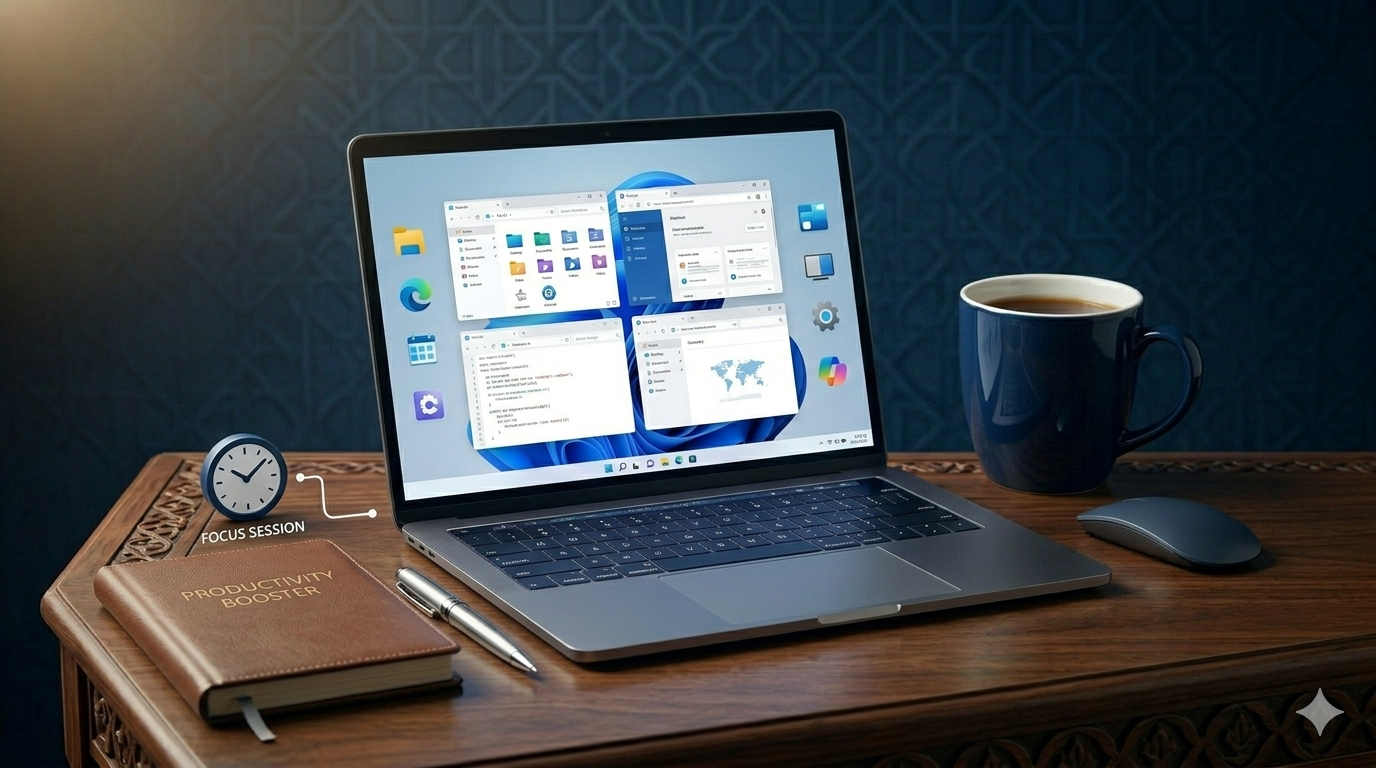
Windows 11 Expert Tips: How to Boost Your Productivity in 2026
Windows 11 has evolved from a simple operating system into a high-performance productivity engine. As we move further into 2026, the integration of AI, fluid design, and advanced multitasking features has made Windows 11 indispensable for professionals on TechStormX. However, many users barely scratch the surface of what this OS can truly achieve. To stay ahead in a competitive digital landscape, you must master the tools that allow you to work smarter, not harder. This extensive guide provides 10 expert-level tips and tricks to transform your Windows 11 experience into a peak productivity machine.
1. Snap Layouts: Master the Art of Multi-Window Management
One of the most revolutionary features in Windows 11 is Snap Layouts. Gone are the days of manually resizing windows to fit them side-by-side. By hovering over the maximize button of any window, you can choose from various grid layouts that instantly organize your screen. This is particularly useful for researchers, writers, and developers who need to reference multiple documents simultaneously without the friction of constant tab-switching.
2. Leveraging Multiple Desktops for Work-Life Segregation
A cluttered desktop leads to a cluttered mind. Windows 11 allows you to create multiple virtual desktops (Win + Tab). You can have one desktop strictly for “Product Development,” another for “Communication (Emails/Slack),” and a third for “Personal Browsing.” By assigning different wallpapers to each desktop, you give your brain a visual cue of the current task, significantly reducing the cognitive load of multitasking.
- Win + Z: Open Snap Layouts menu immediately.
- Win + Ctrl + D: Create a new virtual desktop instantly.
- Win + Ctrl + Left/Right Arrow: Switch between desktops quickly.
3. Copilot Integration: Your AI Research Assistant
By 2026, Microsoft Copilot has become deeply integrated into the Windows shell. Instead of searching through folders or browsing the web for hours, you can use the Copilot sidebar (Win + C) to summarize long PDFs, rewrite complex emails, or even generate code snippets. The ability to control system settings—like turning on Focus Session or switching to Dark Mode—through simple natural language commands saves precious minutes every hour.
4. Mastering Focus Sessions and Clock App
In the age of digital distractions, Focus Sessions are a godsend. Integrated into the Clock app, this feature allows you to set a focus timer, sync it with your Microsoft To-Do list, and even connect to Spotify for background productivity music. When a session is active, Windows 11 automatically silences notifications, helping you enter the “Flow State” faster and stay there longer.
5. The Hidden Power of Windows Terminal and Tabs
For technical users and developers on TechStormX, the modern Windows Terminal is a game-changer. It supports multiple tabs, allowing you to run Command Prompt, PowerShell, and WSL (Windows Subsystem for Linux) in a single window. Customizing the terminal with “Powerline” themes not only makes it look professional but also provides contextual information that speeds up your development workflow.
6. Universal Search and Quick Launcher
The Search feature (Win + S) in Windows 11 is no longer just for finding files. It is a universal search bar that can calculate math, convert currencies, and search for content within your emails and OneDrive. For an even faster experience, pinning your most-used folders to the “Quick Access” section of File Explorer ensures that you are never more than two clicks away from your critical project files.
Use Win + V to access your Clipboard History. This allows you to pin frequently used text snippets, links, or images so you don’t have to keep re-copying them throughout the day.
7. Voice Typing with Auto-Punctuation
Your brain can think much faster than your fingers can type. Windows 11’s improved Voice Typing (Win + H) uses advanced AI to accurately transcribe your speech in real-time. With the “Auto-Punctuation” feature enabled, you can dictate long-form articles or emails with natural pauses, and Windows will handle the commas and periods. This is a massive physical energy saver during long writing sessions.
8. Advanced File Explorer Features (Tabs and Navigation)
The addition of Tabs to File Explorer was one of the most requested features in Windows history. Instead of having five different folder windows open, use one window with five tabs. You can drag and drop files between tabs just like you do in a web browser. Additionally, using “Compact View” in Folder Options allows you to see more files on the screen at once, reducing the need for excessive scrolling.
9. Optimizing System Performance for Speed
A sluggish OS is a productivity killer. Regularly check your “Startup Apps” in Settings and disable anything that doesn’t need to be running from the moment you boot up. Furthermore, ensuring that your power plan is set to “Best Performance” when plugged in ensures that the CPU isn’t being throttled during resource-intensive tasks like video rendering or heavy compiling.
10. Using PowerToys for Maximum Customization
Microsoft PowerToys is an essential add-on for any Windows 11 expert. Features like “FancyZones” allow for even more complex snap layouts than the default ones. “PowerRename” lets you bulk-rename hundreds of files in seconds, and “Always on Top” lets you pin a specific window (like a calculator or a reference note) over everything else, regardless of which app you are currently using.
Conclusion: Building Your Perfect Digital Workspace
Efficiency in Windows 11 is not about using every single feature; it’s about mastering the ones that align with your specific workflow. By implementing these expert tips, you reclaim hours of lost time every week. As technology continues to evolve in 2026, staying updated with these OS-level optimizations will give you a significant edge in your professional career. Explore these tools today on TechStormX and take full control of your digital destiny.