Key Takeaways
- Length matters more than tricks. A long passphrase is usually stronger and easier to remember than a short, complicated password.
- Every account needs its own unique password, because reusing passwords lets one data breach unlock many accounts.
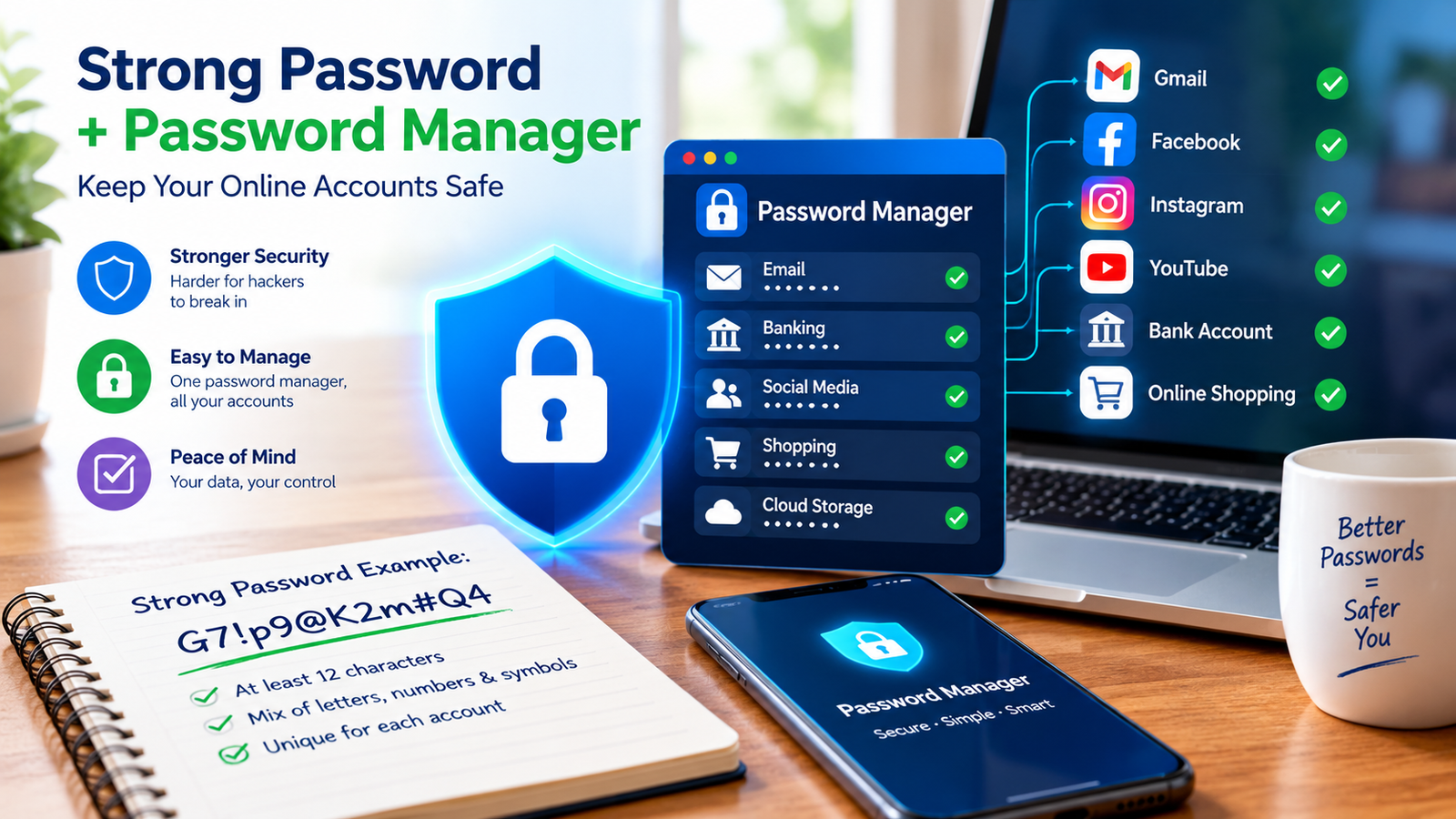
- A password manager creates and stores strong passwords for you, so you only need to remember one strong master password.
- Turn on multi-factor authentication (MFA) for important accounts, and use passkeys where they are offered.
Passwords are still the main key to our email, bank accounts, social media, and work systems. When attackers get a password, they often do not need any advanced hacking skills. They simply log in. Most account takeovers happen because passwords are weak, reused, or stolen through scams.
In this guide, we explain what makes a password strong, why a password manager helps, and which extra protections you should turn on.
Why Weak Passwords Are Dangerous
Attackers use several simple methods to get into accounts:
- Guessing: trying common passwords such as “123456”, “password”, or a name followed by a birth year.
- Brute force: using software that tries huge numbers of combinations very quickly.
- Credential stuffing: taking email and password pairs leaked from one website and trying them on many other websites. This works because many people reuse passwords.
- Phishing: tricking you into typing your password on a fake page. Learn the warning signs in our guide on how to spot a phishing email.
- Malware: software on your device that records what you type.
What Makes a Password Strong?
Modern guidance, including recommendations from the U.S. National Institute of Standards and Technology (NIST), puts the emphasis on length and uniqueness rather than on complicated rules.
- Make it long. Aim for at least 12 to 16 characters, and longer for important accounts.
- Make it unique. Never use the same password on two accounts.
- Avoid personal information, such as your name, phone number, birthday, or pet’s name.
- Avoid common words and patterns, such as “qwerty”, “iloveyou”, or simple substitutions like “p@ssw0rd”.
- Do not rely on small changes. Changing “Summer2026” to “Summer2027” is easy for an attacker to guess.
The Passphrase Method
A passphrase is a password made of several random words. It is long, so it is hard to crack, but a person can still remember it.
| Type | Example Style | Strength |
|---|---|---|
| Common password | Password123 | Very weak |
| Short and complex | A short mix of symbols and letters | Hard to remember, and often still guessable |
| Passphrase | Four or more unrelated random words | Strong and easier to remember |
| Manager-generated | A long random string | Very strong, nothing to memorize |
For a passphrase, choose words at random and do not use a famous quote, a song line, or words that are connected to your life. Randomness is what makes it strong.
What Is a Password Manager?
A password manager is an app that creates, stores, and fills in your passwords. Your passwords are kept in an encrypted vault, and you unlock it with one strong master password. Many managers also warn you when a password is weak, reused, or found in a known data breach.
Why Use One?
- You can have a different, long, random password for every account.
- You do not need to remember them or write them on paper.
- Many managers fill in passwords only on the correct website, which can help you notice fake pages.
- They work across your phone and computer.
Are Password Managers Safe?
No tool is perfect, but using a well-reviewed password manager is generally considered much safer than reusing passwords or keeping them in an unprotected note. To get the most from it:
- Choose a trusted provider with a good security record and clear privacy information.
- Create a strong, unique master password, and never reuse it anywhere else.
- Turn on MFA for the password manager itself.
- Save any recovery codes offline in a safe place.
- Keep the app and your device updated.
Turn On Multi-Factor Authentication (MFA)
MFA asks for a second proof of identity in addition to your password. Even if someone steals your password, they cannot log in without the second factor. Common types include:
- Authenticator app codes: a code that changes every few seconds. This is a good choice for most people.
- Hardware security keys: a small physical device that offers strong protection against phishing.
- SMS codes: better than nothing, but weaker than the options above because phone numbers can be taken over.
Start with your email, because it can be used to reset the passwords of your other accounts. Then protect banking, social media, and cloud accounts. For businesses, our guide to cloud security best practices explains why MFA should be the first step.
What Are Passkeys?
Passkeys are a newer way to sign in without typing a password. Your device creates a pair of cryptographic keys, and you approve the login with your fingerprint, face, or device PIN. Because there is no password to type or steal, passkeys are resistant to phishing. Many major websites and apps now support them. When a service offers a passkey, it is usually a good idea to turn it on, while keeping a strong backup method for recovery.
Common Password Mistakes
- Using the same password on many sites.
- Saving passwords in a plain text file, email, or chat.
- Sharing passwords through messages.
- Using personal details in passwords.
- Ignoring breach alerts.
- Skipping MFA on email accounts.
What to Do After a Data Breach
- Change the password of the affected account right away, and on every other site where you used it.
- Turn on MFA if it was not already active.
- Check your accounts for activity you do not recognize.
- Be alert for scams, because leaked details are often used for targeted phishing.
- Use a breach-checking service from a reputable provider to see whether your email has appeared in known leaks.
Passwords and a Stronger Security Mindset
Strong passwords are one layer of protection, not the whole plan. Backups protect you if an attack succeeds, as we explain in our guide to ransomware. For organizations, the approach of checking every access request and limiting what each account can reach is covered in our guide to Zero Trust security. On public Wi-Fi, a tool such as a VPN can add privacy, as described in our guide to what a VPN is and how it works.
Frequently Asked Questions
How often should I change my passwords?
Current guidance generally says not to change strong passwords on a fixed schedule without a reason. Change a password when you suspect it has been exposed, when a service reports a breach, or when you notice suspicious activity.
Is it safe to let my browser save passwords?
It is better than reusing passwords, and modern browsers protect saved passwords with encryption. However, a dedicated password manager usually offers more features, and you should always lock your device with a strong screen lock.
What if I forget my master password?
Many password managers cannot recover it for you, because they do not store it. This is why you should choose one you can remember, and store any recovery codes in a safe place.
Are long passphrases really safer than short complex passwords?
In most cases, yes. Length makes guessing much harder, and random words are easier to remember than random symbols.
Conclusion
You do not need to be a security expert to protect your accounts. Use long and unique passwords, let a password manager remember them, and turn on MFA, especially for your email. Where passkeys are available, try them. These simple habits stop the most common attacks and take only a short time to set up. Security tools and recommendations change over time, so check the latest guidance from trusted sources when you choose a tool.