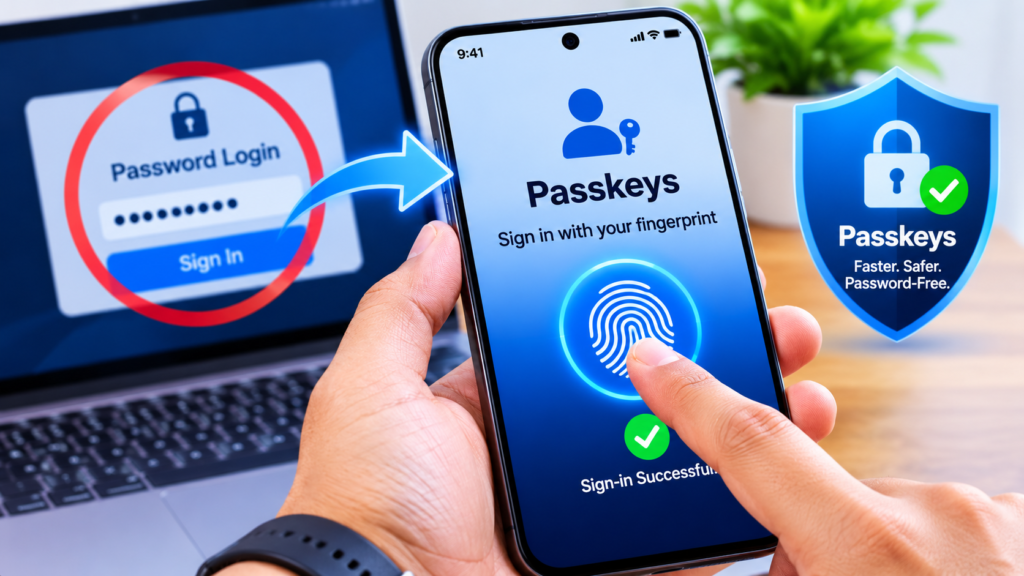
Passkeys are the new way to sign in to apps and websites without a password. Instead of typing a long code you might forget or reuse, you unlock your account with your fingerprint, face or phone PIN. Google, Apple, Microsoft, Amazon, PayPal, WhatsApp and thousands of other services in the UK, USA, Canada and Europe now support this technology.
This guide explains in plain English what a passkey is, how it works, why it is safer than a password, how to set one up on iPhone, Android, Windows and Mac, and what to do if you lose your phone.
🔑 Key Takeaways
- A passkey replaces your password with a secure digital key stored on your device, unlocked with your face, fingerprint or PIN.
- A passkey cannot be guessed, reused or typed into a fake website, so it stops most phishing attacks.
- The FIDO Alliance estimates around 7 billion passkeys were in use worldwide by October 2026.
- You can create one for your Google account, Apple Account, Microsoft account, Amazon, PayPal and many more in a few minutes.
- They sync through iCloud Keychain, Google Password Manager or password managers, so a lost phone does not mean lost accounts.
What Is a Passkey?
A passkey is a digital login credential that lets you sign in without a password. When you create one, your device makes a pair of cryptographic keys:
- A private key that stays secret on your phone, computer or password manager.
- A public key that is saved by the website or app.
When you sign in, the website sends a challenge that only your private key can answer. You approve it with Face ID, Touch ID, Windows Hello, your fingerprint or screen PIN, and you are in. Your fingerprint or face never leaves your device, and the website never sees your private key.
The technology is built on open standards from the FIDO Alliance and the W3C (called FIDO2 and WebAuthn), which is why it works across different brands and devices.
Passkeys by the Numbers (2026)
The FIDO Alliance’s State of Passkeys 2026 report, based on 11,000 consumers in countries including the USA, UK and Germany, found that 90% of people are now aware of the technology and 75% have turned it on for at least some accounts. By October 2026, the Alliance estimated that around 7 billion were in use, and its Passkey Index found that 90% of active accounts at participating companies were eligible. Amazon alone has said more than 500 million customers have enabled them.
How Do Passkeys Work? A Simple Example
Imagine you want to sign in to your Google account on a new laptop:
- You type your email address and choose “Use passkey”.
- Your laptop (or your phone, via a QR code and Bluetooth check) asks for your fingerprint, face or PIN.
- Your device uses the private key to sign Google’s challenge.
- Google checks the signature with the public key it stored and lets you in.
The whole process takes a couple of seconds, and there is nothing for a hacker to steal from Google’s servers that would let them log in as you.
Why Passwords Are Still a Big Problem
Despite years of warnings, weak and reused passwords remain one of the main reasons people lose access to their email, social media and bank accounts. Criminals collect billions of leaked usernames and passwords from old data breaches and try them automatically on popular websites, a technique called credential stuffing. If you used the same password on a small forum and on your email, one breach can unlock both.
Passwords also create daily frustration. People forget them, reset them, write them on sticky notes or choose easy ones like “Summer2026!”. Text-message codes help, but they can be intercepted through SIM swaps or typed into fake websites. This is exactly the gap a passkey fills: it is unique, impossible to guess and cannot be handed over to a scammer by mistake.
Tips for Using a Passkey Safely
- Protect your phone first: use a strong six-digit (or longer) PIN, because anyone who knows your screen PIN may be able to use your saved sign-ins.
- Secure your sync account: turn on strong protection for your Apple Account, Google account or password manager, since it backs up your keys.
- Add more than one device: register a second phone, tablet or hardware key on your most important accounts.
- Keep your software updated: updates for iOS, Android, Windows, macOS and your browser fix security issues and add better support.
- Watch for fake prompts: only approve sign-in requests you started yourself. If a prompt appears out of nowhere, decline it.
- Review your devices: every few months, check the list of devices signed in to your accounts and remove ones you no longer use.
Passkeys vs Passwords
| Feature | Passwords | Passkeys |
|---|---|---|
| Need to remember | Yes | No |
| Can be guessed or cracked | Yes, if weak | No |
| Can be reused across sites | Often | Never — unique per site |
| Can be stolen by fake websites (phishing) | Yes | No — only works on the real site |
| Leaked in data breaches | Yes | Only the public key, which is useless to hackers |
| Speed of sign-in | Slow, plus codes | Fast — one touch or glance |
Why Passkeys Are Safer
Most hacked accounts start with a stolen password. Criminals buy leaked passwords, guess weak ones or trick people into typing them on fake login pages. A passkey blocks all three:
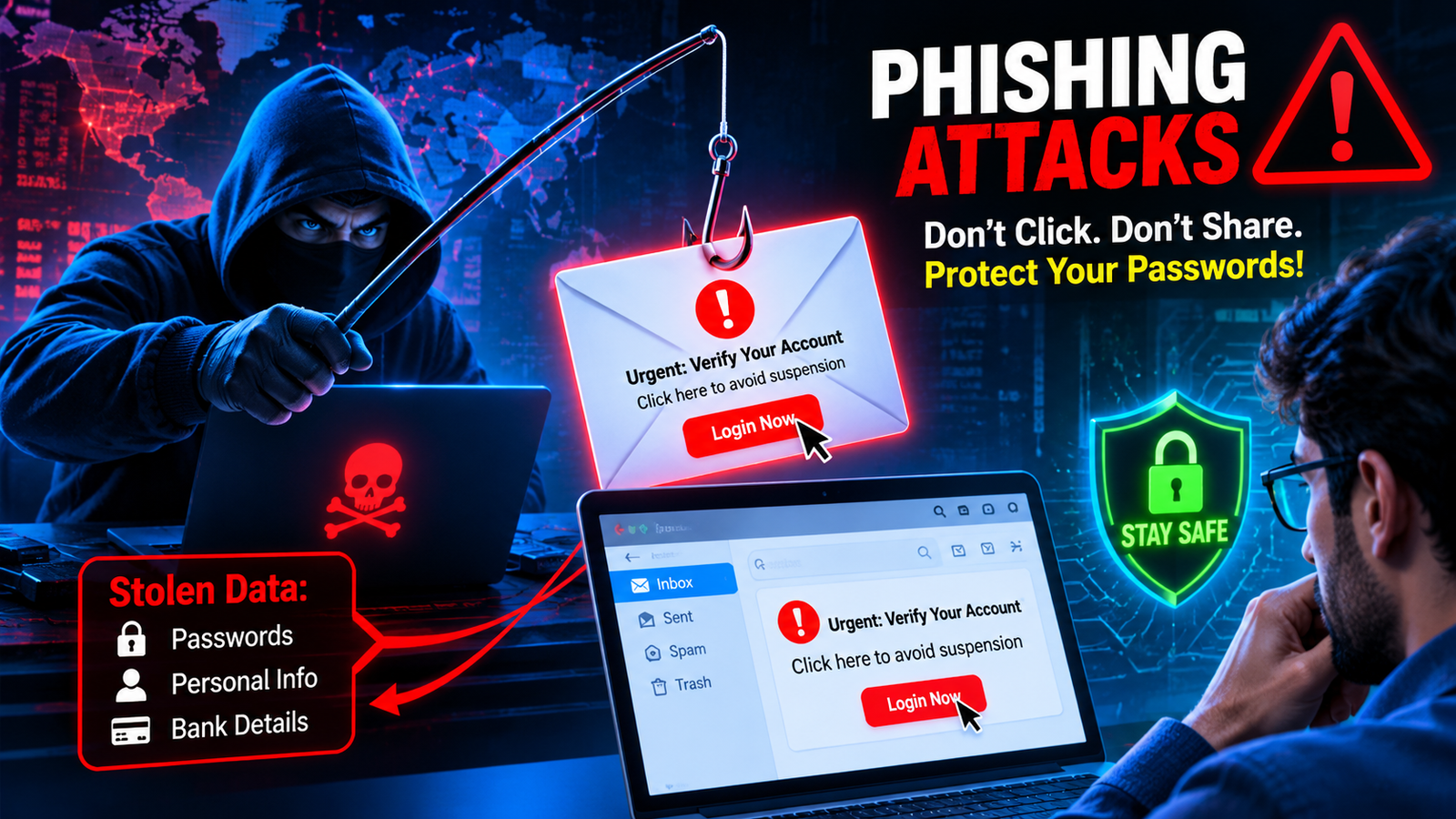
- Phishing-resistant: a passkey is tied to the real website’s address, so it simply will not work on a look-alike site. Learn how these scams work in our guide to phishing attacks.
- No shared secrets: the website only stores a public key. Even if the site is breached, attackers cannot use it to log in.
- Unique for every account: there is no password reuse, so one breach cannot unlock your other accounts.
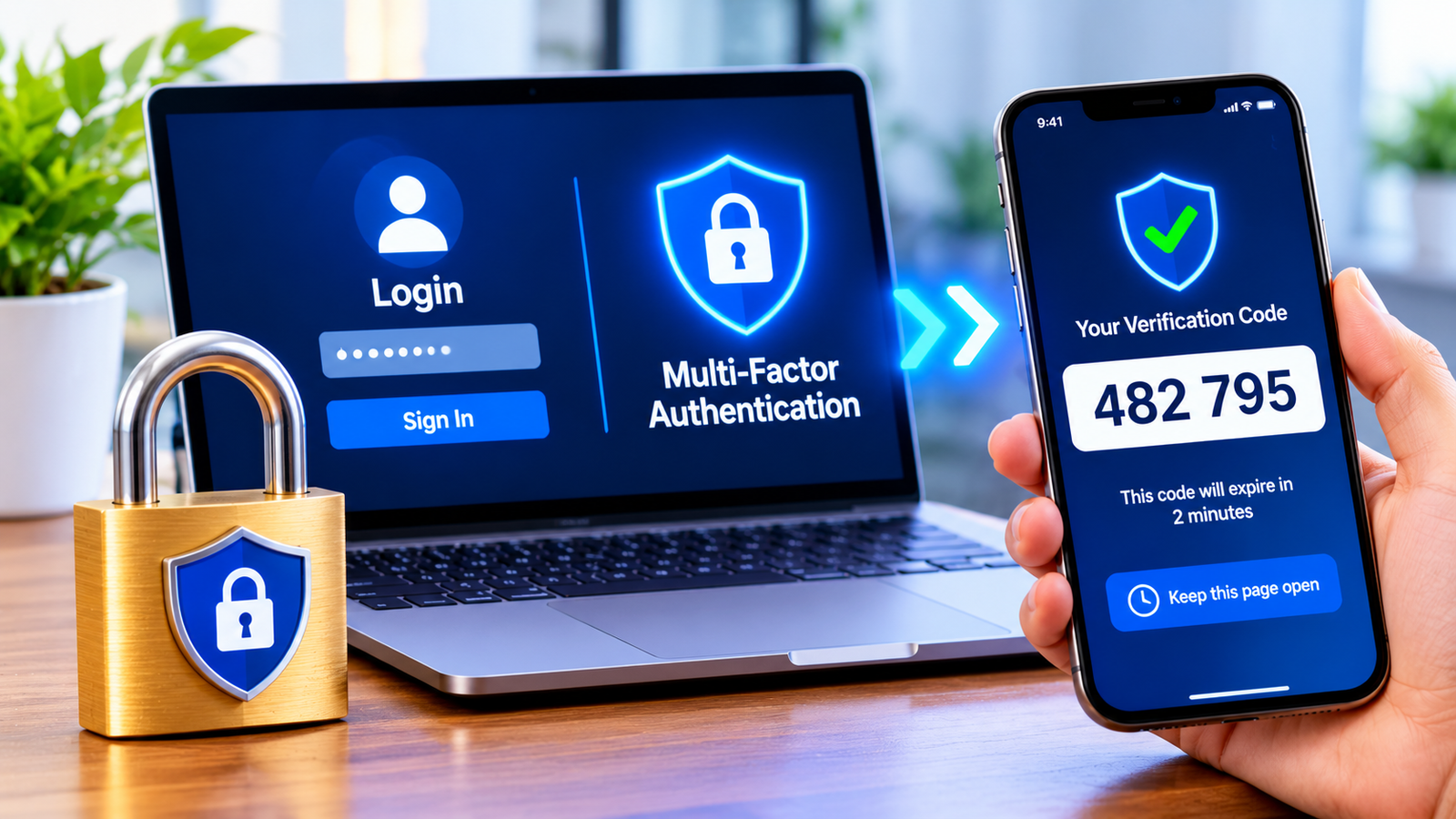
- Built-in two factors: you need your device (something you have) plus your face, fingerprint or PIN (something you are or know). That makes a passkey a strong form of multi-factor authentication.
💡 Did you know? Security agencies such as the US Cybersecurity and Infrastructure Security Agency (CISA) and the UK’s National Cyber Security Centre recommend phishing-resistant sign-in methods like passkeys wherever they are available.
Where Are Passkeys Stored?
Your sign-in keys are kept in a secure “passkey provider”. The most common are:
- Apple iCloud Keychain / Passwords app — syncs across iPhone, iPad and Mac.
- Google Password Manager — syncs across Android phones and Chrome on any computer.
- Windows Hello — stores passkeys on your Windows PC, with syncing improving across Microsoft devices.
- Password managers such as 1Password, Bitwarden, Dashlane and Proton Pass — work across Apple, Android and Windows.
- Hardware security keys such as YubiKey — physical keys that store credentials offline for maximum security.
Synced keys are backed up with end-to-end encryption, so you can still sign in if you replace or lose a device. Read more about Apple’s and Google’s approaches in our Apple and Alphabet company profiles.
How to Set Up Passkeys: Step-by-Step
Create a Passkey for Your Google Account
- Go to your Google Account and open Security.
- Under “How you sign in to Google”, choose Passkeys and security keys.
- Tap Create a passkey and confirm with your fingerprint, face or PIN.
Create a Passkey on iPhone
- Make sure iCloud Keychain is on: Settings → [your name] → iCloud → Passwords.
- Open an app or website that supports passkeys and go to its security settings.
- Choose Create passkey and approve with Face ID or Touch ID. The passkey is saved in the Passwords app.
Create a Passkey on Android
- Make sure you have a screen lock (PIN, fingerprint or face unlock).
- Open the app or website’s security settings and choose Add a passkey.
- Confirm with your screen lock. It is saved to Google Password Manager or your chosen password manager.
Create a Passkey on Windows or Mac
- On Windows, set up Windows Hello (PIN, face or fingerprint) in Settings → Accounts → Sign-in options.
- On Mac, make sure Touch ID or your login password and iCloud Keychain are enabled.
- Visit the website in your browser, open account security and choose to create a passkey.
Popular Services That Support Passkeys
| Category | Examples |
|---|---|
| Email and tech accounts | Google, Apple Account, Microsoft, Yahoo |
| Shopping and payments | Amazon, PayPal, eBay, Shopify stores, Best Buy |
| Social and messaging | WhatsApp, TikTok, LinkedIn, X (Twitter), Discord |
| Work and cloud | GitHub, Dropbox, Adobe, Okta, Microsoft Entra ID |
| Gaming and entertainment | PlayStation, Nintendo, Roblox |
Support changes quickly, so check each account’s security settings. Many banks in the UK, USA, Canada, Germany and Italy are also adding passkeys to their apps.
What Happens If I Lose My Phone?
Losing your phone does not mean losing your accounts, as long as you plan ahead:
- Synced passkeys: if your passkeys are stored in iCloud Keychain, Google Password Manager or a password manager, sign in on your new device and they come back automatically.
- Keep a backup method: add a second device or a hardware security key to important accounts.
- Remove the lost device: use Find My iPhone or Find My Device to lock or erase it, and remove it from your account’s device list.
- Recovery options: keep your recovery email, phone number or recovery codes up to date.
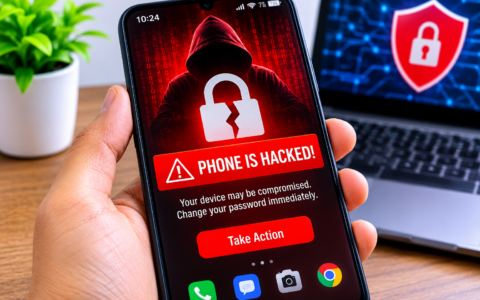
If you think a device was stolen and misused, read our guide on what to do if your phone is hacked.
Disadvantages of Passkeys
This technology is a big step forward, but it is not perfect yet:
- Not every website supports them, so you will still need passwords for some accounts.
- Switching ecosystems can be confusing — moving from iPhone to Android, for example — though new standards for transferring passkeys between providers are rolling out.
- Shared accounts are harder, because each passkey is designed for one person.
- Account recovery still matters — if you lose every device and have no backup, recovery can be slow.
- Many sites still keep a password as a fallback, which attackers can target. Where possible, remove or strengthen old passwords.
Passkeys for Businesses
Companies are adopting passwordless sign-in to cut account takeovers, help-desk password resets and phishing losses. Identity platforms such as Microsoft Entra ID, Okta and Google Workspace let employees sign in with a passkey or security key. Businesses that switch also find it easier to meet regulations and cyber insurance requirements that expect strong authentication. Fewer stolen passwords also mean fewer entry points for attacks such as ransomware.
Are Passkeys the End of Passwords?
Not overnight, but the direction is clear. The FIDO Alliance reports that most participating organisations plan to offer fully passwordless accounts within the next 12 months. Over the coming years, signing in with a glance or a touch is likely to become the normal way to access email, shopping, banking and work apps — and typing passwords will feel as old-fashioned as dial-up internet.
Passkeys FAQs
What is a passkey in simple words?
A passkey is a password replacement. It lets you sign in with your fingerprint, face or phone PIN instead of typing a password, using a secure key stored on your device.
Are passkeys safer than passwords?
Yes. Passkeys cannot be guessed, reused or stolen through fake websites, and a data breach on the website does not expose anything hackers can use to log in.
Do passkeys work on all devices?
They work on modern iPhones, iPads, Macs, Android phones, Windows PCs and Chromebooks, and in major browsers like Chrome, Safari, Edge and Firefox.
Can I use a passkey on someone else’s computer?
Yes. Choose “use a phone or tablet”, scan the QR code with your phone and approve with your face, fingerprint or PIN. The passkey stays on your phone.
Does a passkey store my fingerprint?
No. Your fingerprint or face data stays on your device and is only used to unlock the passkey. Websites never receive your biometric data.
Can passkeys be hacked?
A passkey itself is extremely hard to attack. The main risks are someone unlocking your device or taking over the account that syncs your passkeys, so protect your phone with a strong PIN and your Apple, Google or password manager account with strong security.
Should I delete my passwords after creating passkeys?
If a service lets you go fully passwordless, consider it. Otherwise, keep a strong, unique password saved in a password manager as a backup and turn on extra protection.
Conclusion
Passkeys are the simplest and safest way to sign in available today. They remove the need to remember passwords, block phishing and make data breaches far less dangerous. Start with your most important accounts — email, Apple or Google, Amazon, PayPal and banking — and add a passkey to each in a few minutes. Keep them synced and add a backup method, and you will be ready for a passwordless future.
🛡️ Stay protected: Explore more simple guides in our Cyber Security section, or read the FIDO Alliance passkey resources.
Sources: FIDO Alliance State of Passkeys 2026 report; FIDO Alliance Passkey Index (October 2026); company announcements. This article is for general information only.